



Make (make.com) is a visual cloud automation platform: you drag and drop modules and connect them into a diagram called a scenario, and Make automatically runs that diagram to move data between applications. What stands out about Make compared to many similar tools is its ability to branch data using routers and filters right on a canvas, making it suitable for multi-step, multi-condition workflows. According to the OPCAIOS Tool Library, Make's Free plan includes 1,000 credits per month and the Core plan starts around $9 per month; this price has not been verified as of October 22, 2026. For example (hypothetically), a contact form could push contacts into a spreadsheet and then notify the sales team. This post explains Make in everyday language through four sections: (1) the concepts of scenario, module, and router; (2) how to calculate credits; (3) how to create your first scenario; (4) common errors.
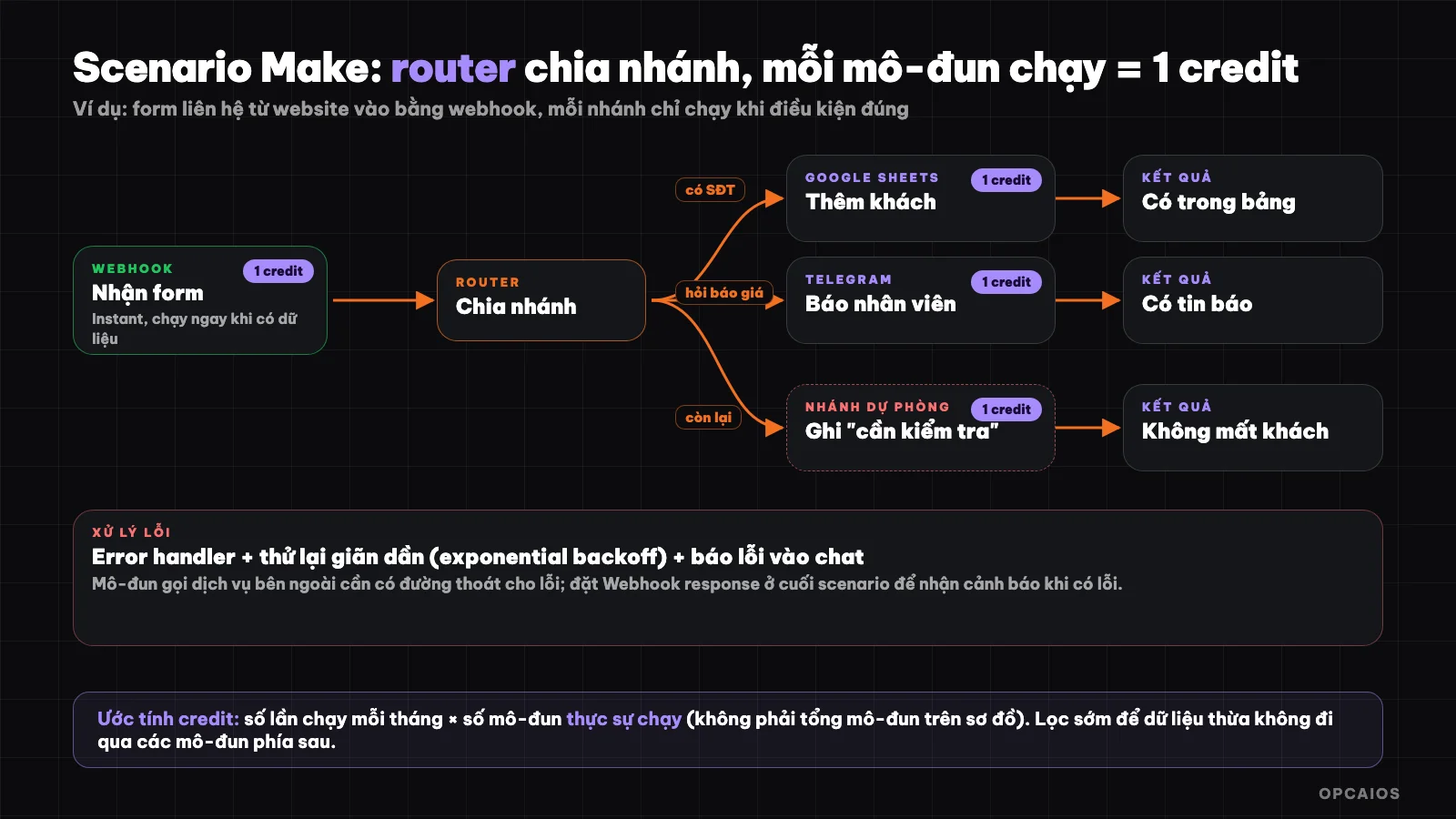
A scenario with branching: data comes in, router divides by condition, each module running uses credits. Diagram: OPCAIOS.
What is Make.com?
Make is a no-code automation platform where you build workflows by connecting modules on a canvas. According to Make's official documentation (verified October 22, 2026), a scenario is a sequence of modules that describes how data is transferred and transformed between applications and services. A typical example from Make's own guide: a marketing team adds leads to a spreadsheet, and the scenario automatically notifies the sales team via Slack.
Make was previously called Integromat (according to Make). According to information in the OPCAIOS Tool Library, Make's homepage introduces over 3,000 pre-built applications. Beyond scenarios, Make's documentation also mentions new components: Make AI Agents, Maia (an assistant that builds automations through conversation), MCP servers to connect AI assistants with Make actions, and Make Grid.
What are scenarios, modules, routers, and filters?
Four basic concepts in Make:
| Concept | Meaning | Example |
|---|---|---|
| Scenario | The entire workflow, one diagram | "Contact form → Sheets → notification" |
| Module | One step, one action from an application | Add a row to Google Sheets |
| Router | Split the flow into multiple branches | Customer asks for quote goes to branch A, asks about warranty goes to branch B |
| Filter | A condition for data to continue | Only pass on if a phone number exists |
Data from the previous module is "mapped" to the next module: you select the "customer name" field from the first step and drop it into the "name" field of the next step. Make also gives you a fallback route for data that doesn't match any conditions, so you don't lose customers by missing a case.
What is credit in Make and how is it calculated?
Credit is Make's unit of measurement for billing: you buy credits by plan, and each time a module performs an action, it consumes credits. According to Make's official documentation (verified October 22, 2026), "credit" has replaced the earlier term "operation," while plans and prices remain the same. For applications that don't use AI, one operation equals one credit, regardless of data size. For example, a module that uploads a file to Google Drive always costs one credit per file, whether the file is small or large. Some AI and advanced features charge based on actual usage (number of tokens, file size, number of pages, or processing time).
For AI, Make's documentation distinguishes two approaches. If you use a module from OpenAI or Anthropic Claude with your own account, you pay Make credits for the number of operations and pay the AI provider for tokens. If you use Make's built-in "AI Provider," credits are calculated for both tokens and operations.
Example calculation (hypothetical numbers): a scenario has 4 modules, runs for 500 customers each month, using about 4 × 500 = 2,000 credits. With a router, each branch only runs when that branch's condition is true. So count the modules that actually run, not the total modules on the diagram.
Does Make have a free plan?
Make has a free plan to get started. According to OPCAIOS's Utilities library (compiled from Make's official pricing page), the Free plan includes 1,000 credits per month, a maximum of 2 active scenarios, and a minimum run interval of 15 minutes; paid plans start with Core at around $9 per month for 10,000 credits. Make's pricing page currently requires a bot verification step, so OPCAIOS has not re-checked prices as of 22/10/2026; please see the official pricing page before deciding.
According to Make's official documentation, there are a few technical limits: each team can create a maximum of 100 scenarios per day, and each scenario has a size limit of 2 MB. For example, a test team running 3 scenarios in one day is still far from this limit. With the Free plan, a maximum of 2 scenarios can be active at the same time. First, count the number of scenarios you need to run simultaneously, then count your monthly credits, and finally compare with the $9 Core plan.
How do I create my first scenario?
Your first scenario should follow the official Make tutorial example (checked as of 22/10/2026): monitor a spreadsheet, and when a new row appears, send a notification to the person in charge. Six steps:
- Step 1, create a Make account (the Free plan is enough to try).
- Step 2, make a plan: identify the source application (Google Sheets), the trigger event (new row), and the desired outcome (notification).
- Step 3, create a new scenario and add the first module to monitor the source data, then connect your Google account.
- Step 4, add a processing module: send a message to Slack or Telegram, combining fields from the spreadsheet into the message content.
- Step 5, add a router and filter if needed, for example, only notify when the row has a phone number.
- Step 6, run a test, check the result, then activate the scenario and set the run frequency.
With your website, replace the first step with a webhook: your website sends data as soon as a new form is submitted, and Make runs immediately instead of waiting to check the spreadsheet periodically. Details on concepts are in the posts What is a Webhook? and What is an API?.
How do webhooks work in Make?
A webhook in Make is a URL address that external services send data to in order to trigger a scenario immediately. According to Make's official documentation (checked as of 22/10/2026), there are two types: webhooks specific to each application (instant trigger, labeled INSTANT) and custom webhooks that accept any data you send. If an application doesn't have a webhook, use a periodic check trigger (polling). There are four details often overlooked, according to Make:
- 1. Default runs in parallel: an instant webhook processes each request as it arrives. If you want to process in order, turn on "Process data in order" in the scenario settings.
- 2. Default response: when there's no Webhook response module, Make returns
200 Acceptedwhen queuing,400 Queue is fullwhen the queue is full, and429 Too many requestswhen exceeding the rate limit. - 3. Queue has a limit: with each 10,000 credits issued per month, each webhook holds a maximum of 667 waiting items, and up to 10,000 items total. When the queue is full, Make rejects new data.
- 4. Place the Webhook response module at the end. If you place it in the middle of a scenario and a step after it fails, the scenario won't stop and you won't receive an error alert.
The opcaios.org website can send a webhook (with a signature) to Make's custom webhook address; verifying the signature requires an additional processing step.
How do I handle errors in Make?
Make has its own error handling toolkit to keep scenarios running smoothly when a module fails. According to the official documentation, it includes error handlers, exponential backoff retry mechanisms, and an active error reporting command (Throw). The practical approach: attach error handlers to modules that call external services, set retries for temporary errors like connection loss, and report to a chat channel when errors persist. Every workflow needs an "exit route" for errors; otherwise, one broken step will cause the entire scenario to stop silently.
How Make, Zapier, and n8n differ
Make, Zapier, and n8n all connect applications, but they differ in intuitiveness, where they run, and how they charge. Choose Make if your workflow has many branches and conditions but you still want to use the cloud. Choose Zapier if you need the easiest approach; see What is Zapier?. Choose n8n if you need data control or high volume; see What is n8n?. In a hypothetical scenario, a workflow with three branches based on request type suits Make's router, while a simple two-step task suits Zapier. Brief information on each tool is in the library: Make, Zapier, n8n. The table below compares four criteria: where it runs, interface, billing unit, and strengths.
Comparison table for Make, Zapier, and n8n
| Criterion | Make | Zapier | n8n |
|---|---|---|---|
| Where it runs | Cloud | Cloud | Self-hosted or cloud |
| Interface | Visual canvas, branching via router | Sequential step list, Paths for branching | Node canvas, flexible, steeper learning curve |
| Billing unit | Credit (usually one credit per action with a typical app) | Task (each successful action) | Self-hosted: server cost |
| Strength | Multi-branch workflows, complex data processing | Easiest to start, largest app library | Data control, code injection, AI |
Tips for using Make efficiently and saving credits
A few habits help scenarios run smoothly and avoid wasting credits, based on common experience with Make:
- Tip 1, filter early: place a filter right after the first module so unnecessary data stops there and doesn't pass through credit-consuming modules downstream.
- Tip 2, name modules and add notes clearly so others can take over later; Make allows notes on modules and routes.
- Tip 3, always have a fallback branch for data that doesn't match any condition.
- Tip 4, test with sample data step by step before turning on a schedule to run on all data.
- Tip 5, use webhooks immediately instead of polling when the service supports it, because polling checks periodically and wastes runs even when there's no new data.
- Tip 6, estimate credits before enabling: number of runs per month times the number of modules that actually run.
- Tip 7, set error alerts so you know right away when a scenario breaks instead of finding out days later.
Frequently asked questions
What is Make.com and what is it used for?
Make is a no-code automation platform used to connect applications and services via diagrams called scenarios. Common examples: bringing customers from a form into a spreadsheet and notifying staff, syncing orders, creating periodic reports.
Is Make free?
Yes. According to OPCAIOS's Utilities library, compiled from Make's official pricing page, the Free plan includes 1,000 credits per month, a maximum of 2 active scenarios, and a minimum run interval of 15 minutes. Paid plans start with Core at around $9 per month for 10,000 credits. Make's pricing page requires a bot check so OPCAIOS has not verified the price again as of 22/10/2026. Example scenario: a 4-module scenario running for 250 customers each month uses around 1,000 credits, just hitting the Free plan limit. So check the official pricing page to confirm current rates before signing up.
What is credit in Make?
Credit is the billing unit, replacing the term "operation." For apps that don't use AI, one module action costs one credit. Some AI and advanced features are calculated by token, file size, number of pages, or processing time.
Should I use Make or Zapier?
Choose Make if your workflow has many branches and conditions and you want to see the entire flow on one canvas. Choose Zapier if you want the easiest approach and minimal setup. It's best to try both with a real task and then compare credit and task costs.
Where can I learn Make quickly?
Follow the "Create your first scenario" guide in Make's official help center (checked 22/10/2026), then try it with a small workflow of your own. For example, first connect a Google Sheets spreadsheet to Slack or Telegram, next add a filter that only lets data through if there's a phone number, finally test with 5 sample rows and see how many credits you've used. To build an automation workflow for a small business, see OPCAIOS's AI application training course.
Sources: Make's official help center (credit, webhook, error handling, first scenario; checked 22/10/2026) and OPCAIOS's Utilities library (plan pricing, number of apps). Make's pricing page blocks automated access so pricing needs to be confirmed again before signing up.
Translated from Vietnamese with AI. Read the original.
Want to apply this in your business?
Book a free 30-minute call (Vietnam time, in English or Vietnamese).